

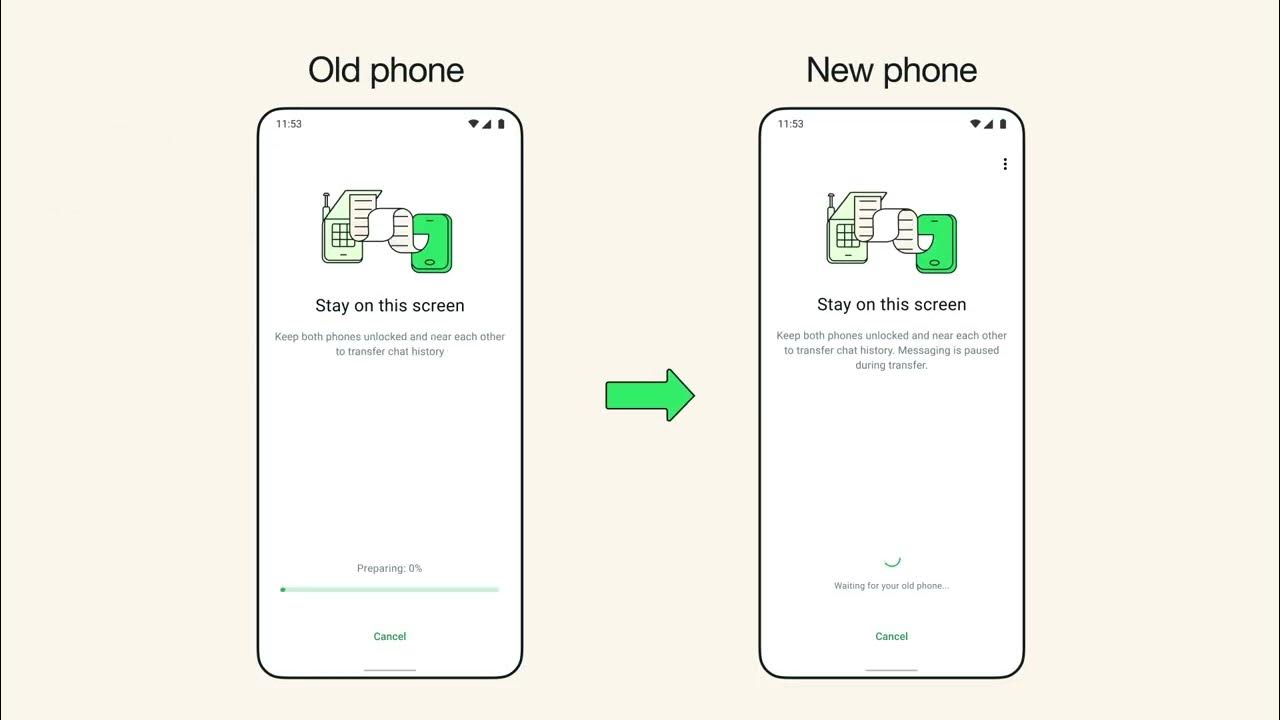
Upgrading your phone can be a stressful experience, especially when it comes to important conversations and media. One common fear among smartphone users is losing messages, pictures, and videos when upgrading or replacing their phones.
The good news is that GB WhatsApp backup can be easily transferred to a new phone if done in the right manner. This blog demonstrates the whole procedure in a very simple way.
Why GB WhatsApp Data Transfer Matters
Your GB WhatsApp information is precious. It contains personal conversations, memories, and important files. Data transfer emerges as a critical requirement in various situations.
- Perhaps you are upgrading to a new phone.
- Your cell phone may need repair work.
- Perhaps you’ll need a safe copy for safety’s sake.
In all these situations, it is important to move your data to make sure nothing important is left behind.
Prepared Your Data Before Changing Devices
Preparation is the most critical part. Before you install GB WhatsApp on your new smartphone, you will have to make a proper backup.
- Open GB WhatsApp on your old smartphone.
- Go to Settings from the menu.
- Touch Chat, and then access Chat Backup.
- Two other options for backup are available.
- You can back up your data using Google Drive for online protection.
- A local copy can be generated on your phone.
When the backup is finished, you will need to store it properly. This backup will be used on your new device.
Installing GB WhatsApp on The New Phone
Now, after you have protected your backup, you can install your application on your new smartphone.
- Download GB WhatsApp APK from a trusted site.
- Open your phone settings and allow installation of apps from unknown sources.
- Install the APK file on your device.
Now you can install this app on your phone and check your phone number in it. Make sure your phone number in this application is the same phone number you used in your old smartphone.
Restore Chats and Media Files
GB WhatsApp will now look for your backup after verification.
- If you use a service such as Google Drive, it will detect your cloud backup when you install this app.
- Tap Restore and allow the procedure to complete.
- If you have a local backup, you will need to copy your GB WhatsApp folder from your old phone.
- Paste it into the internal storage of your new smartphone.
- Put it inside the GBWhatsApp folder.
Reopen the application and allow it to recover all your information. The procedure will end with all your messages, pictures, and videos being restored.
Tips to Avoid Mistakes in Transferring
Small errors can hinder this procedure. The above guidelines can assist a student in making this transfer successfully.
Use a Stable Wi-Fi Connection
- During backup and restore, do not close your application.
- Store up sufficient space on your device.
- Always keep yourself updated with the latest versions of GB WhatsApp
By using these steps, one can avoid a failed restoration.
Resolving Common Transfer Issues
At times, consumers can experience difficulties in the transfer of data. Most of these issues have very simple solutions.
Backup Not Found
- Verify that the backup was successful.
- Make sure the phone number matches on both devices.
- Make sure you have the right Google Account active.
Chats Not Restoring
- Chats Not Log in with your Google account used for backup.
- Perhaps you can try a local restore rather than the cloud?
App Not Installing
- Allow unknown sources in device settings.
- Download the APK file again from a trusted source.
- Check out our comprehensive article on GB WhatsApp Privacy Settings.
Quickly resolve common issues with these solutions.
Conclusive Remarks
GB WhatsApp data transfer from one device to another need not be a problem. With all things considered in backup, installation, and restoration, your messages and other files will be protected. Backing up your information can shield your files in case you switch phones. Take your time. Read each step. Your messages have significance, and these steps will make sure they are with you all your life.